The term SnailMail didn’t exist until e-mail became so prevalent that there was a requirement to differentiate the two. Obviously, the term was invented by e-mail aficionados as a small barb directed at the relative slowness of physical transportation.
And now, Email is Old School. According to a new AOL survey, the instant message appears to be catching up to e-mail as the favored way to communicate using the Internet.
Of the 4,000 people interviewed by America Online, a quarter of them preferred IM, the electronic messages that appear unprompted on a computer screen, over using e-mail. Some 15 percent America Online surveyed in 2004 favored IM.
In addition, an increasing number of people rely on mobile instant messaging, which points to the fact that people are looking to go online beyond using it only on the desktop.
Sunday, November 13, 2005
Instant Messaging turns E-Mail into Snail Mail

Friday, November 11, 2005
Capture Pictures from DVD Movie Scenes in Windows Media Player or Real
How to take Screenshots of Movies in Windows Media Player and prevent blank black Screen Captures
Quest: How do I capture still images from a movie playing in Microsoft Windows Media Player, Real Player, WinAmp or Apple QuickTime?
Some users try to grab the current video frame by pressing the standard Windows “Print Screen” key (next to F12 key on the QWERTY keyboard). But when the image screenshot from clipboard is pasted into an image editor, the capture is a black blank screen instead of the actual video.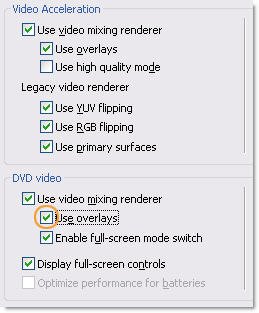 Reason: When the video plays, it is actually displayed on a different surface/layer called overlay that is produced by hardware acceleration. When you take a normal screen capture, you’re taking it of the normal surface where the video isn’t displayed. That’s why it comes out black as it is invisible to the screen capture software.
Here are some common solutions to capture pictures from DVD movies currently playing with Windows Media Player Classic or other video players. It should also work for movies (wmv, mov, avi) embedded in a webpage.
1. Use another media player such as Power DVD, WinDVD or BSPlayer - it takes screenshots of the movie and stores them as jpegs images. Or you could try a video editor like VirtualDub.
2. Invest in a commercial screen capture software like Camtasia Studio or SnagIt (allows DirectX capture).
3. In WMP, at least since version 9, you can use Ctrl-I (EYE) to capture a frame, either when playing or when paused for greater accuracy. It brings up a Save Captured Image dialog which handily defaults to a jpeg. This works only if the video you are watching is using a Microsoft supported movie file.
4. Don’t use Overlay
1. Open your Window Media Player and click Options on the Tools menu.
2. On the Performance tab, click on the Advanced… button.
3. Uncheck Use overlays from DVD video, click OK and restart the player.
Now you can capture images from any movies played in Windows Media Player using Print Screen (PrintScrn) key (or ALT + PrintScrn key). Once copied, the image can be pasted into Microsoft Paint (Start > All Programs > Accessories > Paint) or other image editor. If you have problems taking screenshots from a playing movie try to pause it first, then “print” the image.
5. Fix blank captures by turning off hardware acceleration. You can either disable hardware acceleration in the application that is playing the video, or disable hardware acceleration system wide.
To disable graphics hardware acceleration globally for all applications in Windows XP or Windows 2000, Select
Control Panel - Display - Properties - Settings - Advanced - Troubleshooting and slide the Hardware Acceleration slider from Full to None.
For Windows 98 or NT systems, the path is slightly different
Control Panel - System - Performance - Graphics - Advanced settings.
Now hit the OK button at the bottom of the window. This disables all accelerations. You may need to restart the machine for the change to take effect.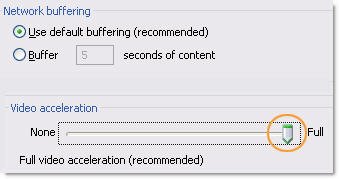 To turn Off Hardware Acceleration in Your Video Player Only:
In Windows Media Player:
1. In Media Player 7 or later, select Tools > Options > Performance tab. In Media Player v.6.4 and earlier, select View > Options > Playback.
2. Click and drag the Hardware Acceleration slider to the left, changing the setting from Full to None.
In RealOne Player:
1. Select Tools > Preferences > Hardware in the navigation pane
2 Click and drag the Playback Performance slider to the left, changing the setting from Best quality to Lowest CPU usage.
In Apple QuickTime (Standard and Pro):
1. Select Edit > Preferences > Streaming Transport. The QuickTime Settings dialog box displays.
2. From the drop-down list, select Video Settings. Click the Safe Mode (GDI Only) radio button.
In WinAmp
1. Click Options - Preferences - General Preferences, select Video.
2. Uncheck Allow hardware video overlay.
Don’t forget to move the Video acceleration slider back to Full when you are done
For Windows Media Player 9, you can either turn off hardware acceleration, or use a slightly different solution that will allow you to leave hardware acceleration enabled during video capture. However, in order to capture RealPlayer or QuickTime videos, you must turn off your computer’s hardware acceleration.
Capturing Still Images from a DVD Player using SnagIt - You can use SnagIt to capture still images directly from a DVD player if you are using a software DVD decoder, such as Intervideo’s WinDVD or CyberLink’s Power DVD. However, you may need to make the configuration changes mentioned above to your DVD player software in order to do take this type of capture. Windows Media Player cannot be used for this purpose because it does not use a standard DirectX layer to display DVD video.
PingGoat Founder calls for help
When you update your blog, don’t forget to ping it! Many blog hosts (but not all) offer automatic pinging as a feature of their service. If it’s not provided as part of the package, however, you’ll have to report your updates manually.
Kailash Nadh - Did you trying integrating Adsense or Chitika ads in your website.
The most popular ping service, Ping-o-Matic, is also dying a slow death. Blogger automatically pings weblogs.com when a new post is published but that’s too limited. Pingoat pings 64 sites including 27 non english sites. And it even supports bookmarking.
The other alternatives are Feedburner Pingshot or Feedshot (commercial service).
Update: Pingoat has shifted to a new server and looks like it’s out of trouble, atleast for now.
Google Product Development Process - Interesting facts
 Evelyn Rodriguez has prepared some interesting notes on the product development process at Google. These notes are from a presentation delivered by Marissa Mayer, a Google Product Manager.
Here are some interesting tidbits from the Google PDP document:
Google has offered free pizzas to Stanford students for participating in case studies.
Smart people PhD’s ? + creative environment + outlet for ideas = innovation
Creative office design. Looks like mix between college campus and playground with toys. (Googleplex)
Original minimalist design because founder didn’t really know HTML and did the simplest design.
Google News was written by one employee on a weekend after being frustrated trying to read news after Sept 11 event. Very soon, Googlers started to use it to read their news and then Google assigned 3 people (one was UI designer) and one PM to work on it
Continue strong ties to universities (especially Stanford). Also hire range of people with broad experience and non-traditional talents such as expert in Italian travel, machine learning, etc.
Ask user to find answer to a trivia question using the search engine and observe their interaction. They have an in-house user studies lab with a one-way mirror. Software that records mouse-clicks.
Download Google Product Development Process (pdf ~100kb)
Source: Why Google Is Going to Get There First [via]
Thursday, November 10, 2005
Top Paying Chitika Keywords
Since Chitika now supports channels (SID) , we can use this technique to determine the best Chitika keywords that have a higher CTR as well as eCPM.
Here we have written a simple hack to determine the top paying keywords in Chitika eMinimalls. Since this hack only extends the existing channel names, we will still be able to track which Chitika interactive unit was clicked by the user.
All you need to do is add one more line of code to your Chitika Javascript code.
The variable ch_sid holds the SID level/channel name. We have just extended the channel name to include the product name. Once this is enabled, your Chitika eMiniMalls reports will show data for “channel name” + “product name”. So you will easily know which keywords are performing best and remove the ones that are low paying or receive no clicks at all.
Chitika Customer service are doing an excellent job. They sometimes reply to your queries in few seconds.
I made a few changes in the above code based on Michelle (Chitika Customer Service) advice.
1) The semicolon was missing in the first ch_sid. This can lead to javascript errors on some browsers. Also I added // before the “Chitika Channel Name”. (since people tend to blindly copy the code. If there is a comment atleast the code wont break)
2) Nitpicky thing: changed the repeated ch_queries[ch_selected] to ch_query (and saved 1 nanosecond to avoid the array reference! :-)
Add Post to Del.icio.us or Furl It links in Blogger posts
This technique is for blogs hosted on Blogger (blogspot) platform. Movable Type or WordPress users will have to change the following Blogger Template Tags:
- Permanent link to article
- Title of the Blog post
Post to Del.icio.us
Add to Kinja - Your readers can add your website to their Kinja favorites by clicking the Kinja button.
Save to Furl
The next two tips are only for Blogger platform. Remember to replace xxx with your blogid available on the Blogger Dashboard. The code should be inside the
Email This - Let visitors email your posts to friends
Leave a Comment - Opens the Blogger comment window in a new pop-up window
Tuesday, November 8, 2005
GMail Inbox Backup with Microsoft Outlook
 POP lets you download email messages from Gmail’s servers onto your Microsoft Outlook (or Outlook Express). Unlike Yahoo or Hotmail, POP access is free for all Gmail users and Google has no plans to charge for it in the future.
 This is a step-by-step guide to download your email messages from Gmail servers and create a backup in the extreme scenario when GMail Inbox is corrupted or you need access to your Gmail emails on a computer that is not connected to the intenet.
1. Enable POP in your Gmail account available in Mail Settings | Forwarding and POP - Select ‘Enable POP for all mail’ or ‘Enable POP for mail that arrives from now on.’ Be sure to click ‘Save Changes’. You can choose to trash messages in Gmail after accessing them with POP or let them stay in Inbox or Archive them. [#]
2. Configure Microsoft Outlook as POP email client - Read detailed instructions for configuring Microsoft Outlook 2003 or Microsoft Outlook Express and Outlook 2002 (XP)
3. Test the GMail-Outlook connection. If everything works fine, click Send Receive (F9) in Microsoft Outlook. Your GMail messages become available in batches in MIcrosoft Outlook Inbox. It may take some time for all of your mail to download if you have lots of messages. Outlook status bar will display the download statistics in real time.
4. Microsoft Outlook will store all your GMail Email messages and attachments in a file on your hard disk called a personal folders (.pst) file. To create a pst file of your GMail message, click Import And Export on the Outlook File menu. Click Export To File, and then click Next. Click Personal Folder File (.pst) , and then click Next. Choose the Inbox folder that contains your GMail emails, and then click Next. Click the Browse button, and then select the location to save the file. In the File Name box, type a descriptive file name, and then click OK. Click Finish.
Once your have created a pst file of your GMail Inbox, you can restore your GMail Inbox even if is damaged due to a hardware failure or other unexpected events. You can also move or transfer GMail emails to a different computer by backing up the data from the original hard disk, and then restoring it to the new hard disk.
You should also note that messages in ‘Spam’ and ‘Trash’ aren’t automatically downloaded. If you’d like to access messages in ‘Spam’ and ‘Trash’ with POP, you can move them to your inbox, or ‘All Mail.’ Also, Mail sent from your POP client will not download again.
If your Outlook client has trouble sending / receiving message from GMail, it could be due to a know bug in Outlook that corrupts the SSL cache. Try to clear the Internet Explorer SSL State and if that doesn’t work, change the Outgoing mail server (SMTP) port from 465 to 25.