Tuesday, December 13, 2005

Google Desktop Search 2 for Non-English Users

Just a month after releasing the final version of Google Desktop Search 2 English version, Google today announced that the other international (multilingual) version of Google Desktop Search 2 are also out of beta.

Google Desktop Search 2 is now in 16 languages for non-english users, including French, German, Italian, Japanese, Korean, Chinese (simplified), Chinese (traditional), Danish, Dutch, Finnish, Norwegian, Portuguese/Brazilian, Russian, Spanish, and Swedish.

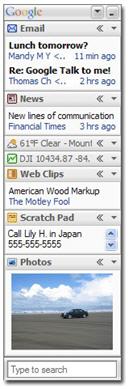
The International versions of GDS 2 includes an international Weather panel, a Google Maps panel and support for script Sidebar plug-ins for developing Google Sidebar panels using the Google Desktop Display API.

Google Desktop 1 was available only in English, Chinese, Dutch, French, German, Italian, Japanese, Korean and Spanish language. The Sidebar was available only in English.

Download Google Desktop Search 2 International [1.3 MB exe]

Download the Google Desktop SDK

The Google Desktop SDK provides documentation and sample code for using the Google Desktop APIs (via COM and HTTP/XML). Developers can program in Visual Studio .NET, Java, Perl, Python orany language that supports COM and XML. JavaScript and VBScript samples are for Sidebar only. [via]

Update: Google also released a new service allowing developers the opportunity to create “modules” for the Google personalized homepage (google.com/ig). Adam Sah posts on the Google Blog in: Build your own Google homepage, that the Google Homepage API has been released. They even offer a collection of a few modules including a clock, a weather map, and a way to personalize the Google logo.


Google Adsense Themes for Skyscraper Formats

Google have enable Themed Ads by default for all Adsense Publishers. During holidays and special events, Google ads will now display themed colors and graphics based on the geographic location of the website visitor.

For example, Fourth of July-themed ads would be visible only to users located in the U.S., while users throughout the world might see ads with a New Year’s Eve theme. Earlier, some users spotted themed AdSense ad units for Hallowe’en.

You can enable or disable themed ad units by following these steps:

1. Log in to your account at www.google.com/adsense.
2. Go to the My Account tab.
3. On the Account Settings page, scroll down to the ‘Ad Type Preferences’ section and click ‘Edit.’
4. Depending on your preference, check or uncheck the box next to ‘Enable themed ad units when available.’
5. Click ‘Save changes.’ Your selection will apply to all your AdSense ad units.

Related: See all official Google Ad formats for any webpage using the GoogleAdsPreview Firefox extension.

Get Google Adsense Reports in Email

Google today launched the Google Adsense Reports Manager. Google Adsense will now send you custom Adsense reports by email in either Zip or Excel CSV formats. Just create and save a custom report with the date, channel, and impression settings you’d like, then visit the Report Manager page under your Reports tab to schedule that report to be sent to your inbox every day, every week, or every month.

Before setting up an emailable report, you’ll first need to create a custom report using the reporting settings you’d like to send by email. You can set up a custom report by following these steps. Once you’ve saved and named your custom report, just do the following:

1. Log in to your account at www.google.com/adsense.
2. Under the Reports tab, visit the Report Manager page.
3. Update the frequency of the report you’re requesting from Never to daily, weekly or monthly.
4. Choose your email address to receive reports, or click the ‘edit addresses’ link above to enter another recipient. If you choose to add another recipient, just type their email address into the Edit email addresses box, making sure it is spelled correctly, and click Save addresses. You’ll now be able to select that recipient from the drop-down menu.
5. Select the format of your report: CSV or CSV Excel. We’ll send your report as a Zip file.
6. Click Save changes and your report will be scheduled for emailing.

Monday, December 12, 2005

Bill Gates wants Google to share ad revenue

Bill Gates has proposed that Internet Search Companies should share share Advertisement revenues with Site visitors.

In a swipe at Google, Bill Gates said Microsoft’s search products may eventually give users software programs or even cash after they click on an advertisement.

Bill Gates wants to spread some of the wealth from Internet advertising. “When you use a search engine, if somebody is making lot of money from advertisers they ought to share it with you,’’ Gates said in an interview.

Of course, this is just wishspeak from Bill Gates, a Microsoft spokesperson clarified to WSJ that the company has no such plans for now.

Source: Google should ‘share’ ad revenue with users [via]

Intellext Watson Desktop Search Sidebar

Watson is like a personal online assistant for your desktop that adds INTELLigence and contEXT to computer search.

Watson Desktop Search displays the search results in a sidebar on the desktop similar to the way the Google Sidebar does without making users interrupt their work to do a separate search. But that is the only similarity between Google Sidebar and Watson. Watson offers relevant information in real time rather than learning over time, as Google’s Desktop Search and Sidebar Web Clips Panel seems to do.

Watson runs in the background on your computer and examines the context of the words on screen to deliver relevant results from multiple sources - the Web, online news sites, blogs, your own computer hard drive and computers connected to your company’s network. Watson initiates a search whenever a user loads a document. It updates its results when a user has been working in those applications for a few minutes and when the document being edited has changed significantly.

Instead of entering key words or phrases into a search box, Watson Desktop Search Sidebar constantly look for information related to the PowerPoint presentation you’re reviewing, the Word document or Excel Spreadsheet you’re crafting or the Web site you’re browsing with IE or Firefox. Watson even watches the Outlook e-mails that a person reads and writes and may offer relevant advice, unprompted. This is on ground-breaking feature that sets it apart from other desktop search software offered by Yahoo, Google, X1 or Copernic.

Watson uses no cookies, nor does it collect information about your search history, preferences and transmit them to any remote server. Watson will never initiate a search based on secure content on its own. Watson differs from personal search tools, such as Google Desktop Search, in that it does not build an index or record your behavior. Watson’s algorithm reads only what you are immediately working on when it creates its search-engine queries of 10 to 15 words.

Watson is now available for free in an advertisement-sponsored version. It has a shopping tab that will display comparative pricing results from Amazon and eBay for different products. Users who want to avoid online advertisements and receive additional content services can purchase a subscription to Watson Professional, for $9.95 per month or $99.95 per year. A lifetime subscription (yes, lifetime) is also available at $199.95, in addition to a $39.95 per year maintenance fee.

Watson works with Microsoft Office XP and Office 2003 applications, IE 6.0+, Firefox 1.04+, and desktop search tool from Google, X1 and MSN. Infact, Intellext has a deal with Microsoft to offer Watson 2.0 as an add-in for the Windows Desktop Search features provided with the MSN Toolbar.

Watson currently works only on Windows 2000, Window XP and Windows 2003. There is no port for Macintosh yet. Watson, come here. I need you.

Download Watson Professional or Watson Standard

How to Clean Computer Keyboard, Computer Screen, Laptop

Simple Guide to clean your Keyboard, Computer Monitor, Scanner, Printer or your Laptop Screen Here’s an overview of how to keep your computer and peripherals clean.

If you are using just a damp cloth to wipe the screen, be sure to dry it off as well to prevent streaking. When cleaning the Computer monitor casing use a soft cloth with your cleaning fluid. Always spray onto the cloth, not the equipment!

If you spill Coke or Coffee in your computer keyboard the first thing to do stop working. Save your data using the mouse instead of key stroke commands, if possible, and quickly turn the keyboard upside down and unplug it. Allow as much of the fluid as possible to drip from the keyboard, and wipe it down with a soft cloth dampened with your specialized computer cleaning fluid or plain water.

Turn the keyboard upside down and shake so loose dust, dirt, and food crumbs will fall out. Spray between the keys with compressed air or vacuum the keyboard. For hard to remove stains such as ink, use a cotton ball with rubbing alcohol or an alcohol saturated wipe.

Conventional wisdom is that you should only clean a screen with a damp cloth, as many screens have an anti-glare coating that you risk damaging if you use a harsh household cleaner. Even traditional window cleaners can damage some coatings and screens, especially on laptop computers.

Scanners
Use a dry microfiber or lint-free cloth moistened with water or a mild glass cleaner on flatbed scanners. (HP says isopropanol- and butoxypropanol-based cleaners like Cinch, Spic And Span, Sparkle, and Glass Plus are okay.) Cleaners with ammonia or isopropyl alcohol may leave streaks. Cleaners with abrasives, acetone, benzene, or carbon tetrachloride may damage the glass. Only a few flatbed scanners let you clean the underside of the glass.

Sheet-fed scanners can be gently vacuumed to remove paper lint. You can also use fax, ADF (automatic document feeder), or scanner-cleaning sheets; run these sheets through a couple of times. With some, you moisten the fuzzy sheet with an included cleaning liquid first. Higher-end sheet-fed scanners and printers let you replace slipping rollers; for the others, wipe the rollers with a cloth soaked in pure rubbing alcohol (clear, not green). If you can reach the scanning elements, clean them with a microfiber cloth; using compressed gas might leave a slight residue.


How to cleaning your Notebook PC
Dust, cigarette ash, pet hair, and other particles can accumulate on or inside your notebook PC. When this happens, they form a layer of grime that can scratch or shorten the life of hardware components by causing overheating. Cleaning your notebook PC can extend its life by getting rid of this potentially damaging buildup. It is recommended to clean your system once a year as part of a regular maintenance program.

Clean the Cooling Vents
Depending on your model, vents can be found on the side, back, and/or bottom of your notebook PC. These vents allow air to flow through the PC and keep it cool. Buildup inside these vents impedes the cooling process. Purchase a can of compressed air (available at most computer retailers) and blow them out.

Clean I/O Ports
The back of your notebook PC has a series of ports. After cleaning the cooling vents, take your compressed air and blow out any debris that may have accumulated in and around these ports.

Clean the Display
LCD screens accumulate smudges and scratches all the time. To clean these, choose a non-abrasive cloth or towel. Plastic and glass cleaners containing ammonia may leave a glare-causing film, so use a computer monitor specific cleaner from a computer store. Spray the cleaner onto the cloth, then wipe the screen with it.

Clean the Keyboard
If you have a small vacuum cleaner with a brush attachment, use it to clear the keyboard of debris. You can also use a can of compressed air to blow out particles that get in between the keys.

Read more instructions for Cleaning the Computer

Microsoft Annual Blogger Awards


Microsoft BhashaIndia will soon be organizing “Indic Bloggers Awards” - an annual award for Indian Language Bloggers. The award will be presented to blogs in Indian Languages based on content, language and creativity.

Microsoft BhashaIndia is a Indian Language Computing portal for software developers involved in Local Language Developement (Indic). Small businesses and individuals can even market their Indian language applications and fonts to their target audience on the BhashaIndia Portal.

The Indic Blogger Awards would be presented in eight categories and 11 Indian Languages. More details on the awards are expected soon. Stay tuned.

Bill Gates recentlyannounced a country-wide talent hunt, called Code 4 Bill, among Indian students, that would give the winner the opportunity to work with Bill Gates’ Technical Assistants team. The 20 best students will be selected to intern with Microsoft at its Indian operations, while the winner will get to join Gates’ Technical Assistants team for a year.

Google held its Google India Code Jam earlier this year to find the best coder in South and Southeast Asia.